Main Window
Main Window
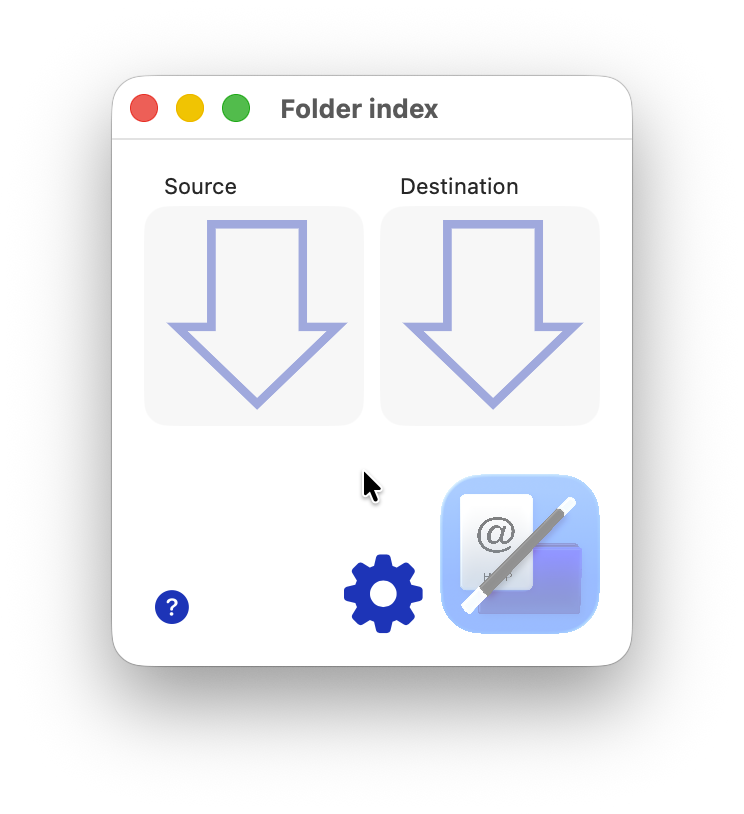
Drag and drop your Source folder on to the Source drop zone.
Drag and Drop your Destination folder on the the Destination drop zone. This can be the same folder as the Source!
Click the Folder index Button and the Progress window will appear.
Click the Cog button to view the Settings Sheet.
Choose Preferences from the "Folder index" menu to edit additional Preferences.
Results
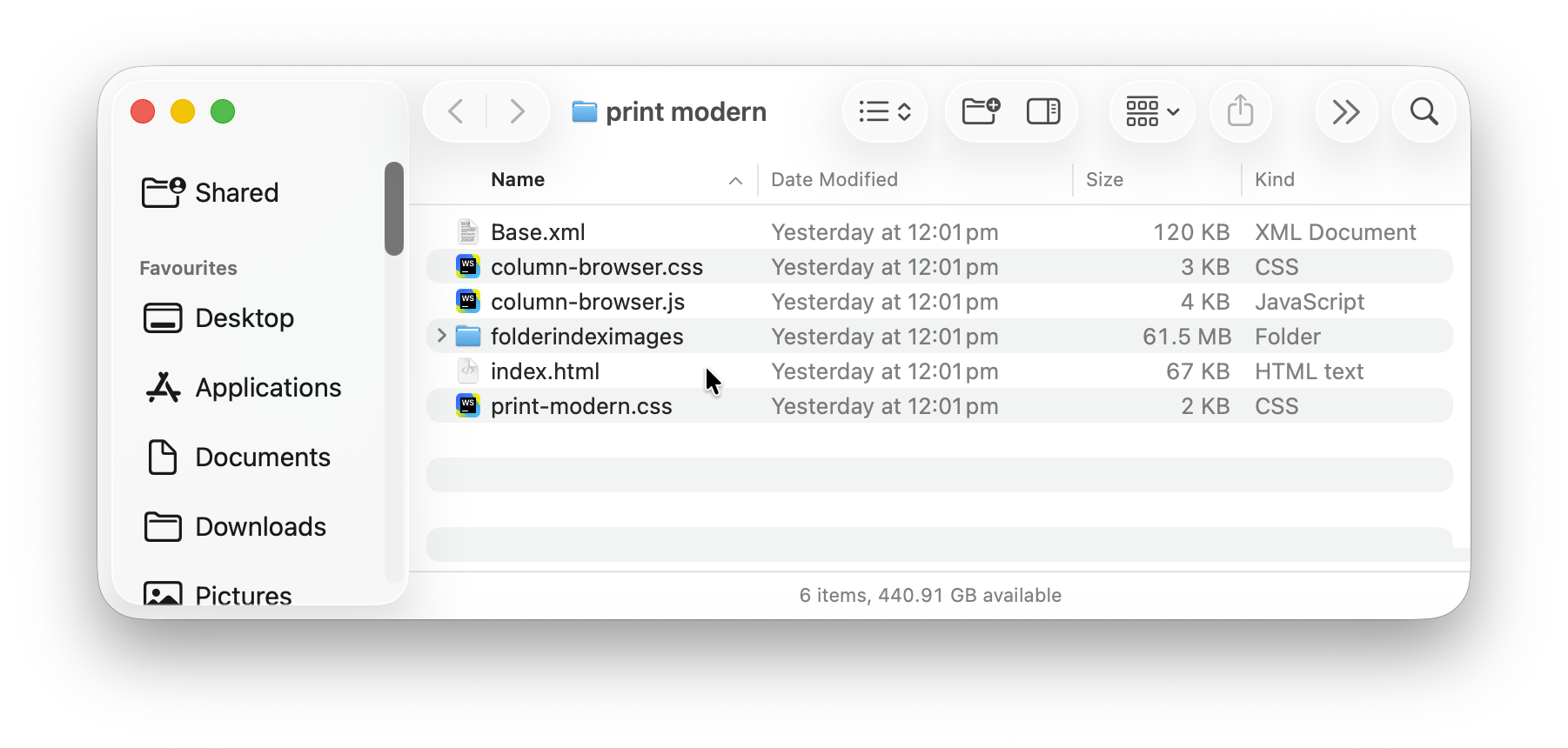
Destination Window
Folder indexer creates 5 files types.
If you change any of these files they must retain their original file names and extensions.
The index.html file has the index information and can be opened in any standard web browser.
The folderindex.css has the formatting information for the index.html. You can edit this to alter the style of the index. If the html requires a small JavaScript module it will also place it here.
The folderindeximages Folder has 4 types of images.
The logo.png image is used in the page header: you can change this to your logo. HTML buttons used by the index.html.
The other .png files are copies of the Finder icons these can also be changed if you wish to use different icons. It may also contain tumbnails of the image files, if this setting has been enabled.
Settings
Click the Cog button the change HTML generation settings.
Settings
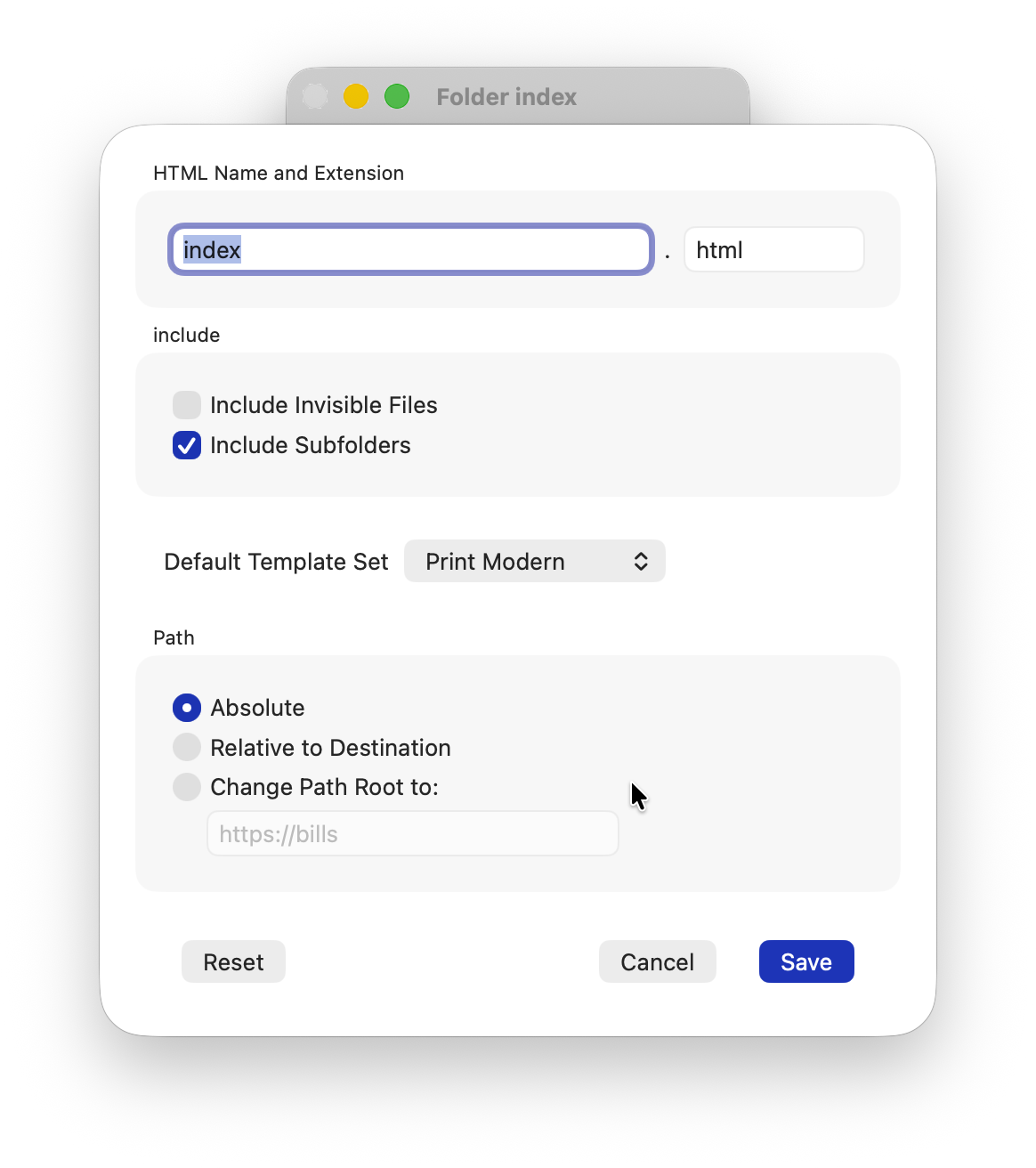
HTML Name and Extension
Changing the Index Name and extension fields will change the final output file name.
Include
Include invisible files: The Mac has many hidden and invisible files, if you wish to have these included in your index.html check Include Invisible Files.
Include subfolders: Folder index can descend into sub folders to build a comprehensive list of files. This may take a lot of time and create a very large index.html file. In extreme cases it may also cause your Mac to run low on memory.
Default Template Set
The current Template Files to be used to generate the html results.

Path
Each folder and file can be hyperlinked to the Source. The type of path used can be the full Absolute path, this includes everything up to the Users folder, and includes you Mac's user account name. Absolute paths break is the Source folder is moved.
The Relative path is from the Source to the Destination. This works well the the Source and Destination folder are the same. Relative paths break if either folder is moved.
If you are publishing your Source folder to a server / website you can enter the path here. You may edit the root section of the href path information. This is normally a period (.) for relative links, if you use this feature and get the path wrong your links will not work!
The Report Level or logging can now be found in the Avanced secion, in the Application preferences/settings.
Advanced Settings
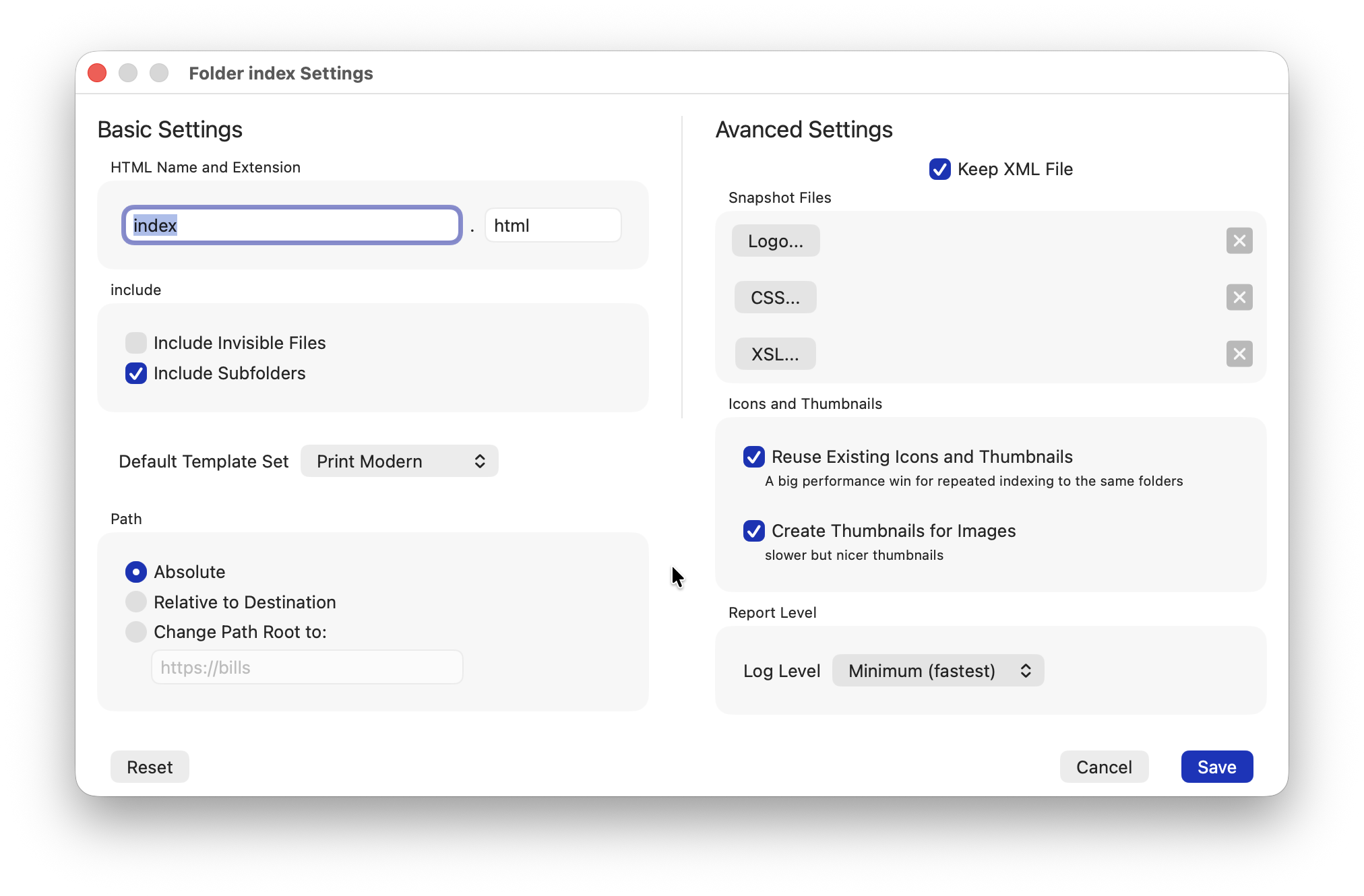
Keep XML File When this is checked the XML file will also be saved in the Destination folder. Snapshot Files Important: Due to sandboxing security Folder index makes a copy of these files (in it's Application Support folder) for later use, if you make changes to the originals you will need to add them again for those changes to have an effect. (see Advanced)
Logo... This will replace the logo graphic with the one selected. CSS... Will replace the built in CSS file with a custom CSS file. XSL... Will use your custom XSL file to transform the XML of the file details. To remove these overrides click the X button beside the file name.
Icons and Thumbnails Reuse Existing Icons and Thumbnails, will speed up processing if you are updateing an existing Folder index destination. I adds very little time to new tasks, so it can be left enabled. Create Thumbnails for Images, uses a thumbnail for the images, rather than the generic image icons. The can add time to the task but works well with reusing existing icons and thumbnails.
Default Template Set is now also in the Setting (cog) and under the Tasks menu.
There are now many more examples of Template Sets.
If there are Snapshot files added in the Advanced settings, the Template Sets are not used.